25+ Free Virtual Backgrounds for Zoom, Teams, and Remo: Office, Beach, Event and More


The best virtual backgrounds for Zoom, Teams, and Remo are ones that match the event or meeting context, load cleanly without green screen hardware, and look professional on camera.
This guide covers 25+ free virtual backgrounds across five categories: professional office spaces, virtual event and webinar backgrounds, beach and outdoor scenes, seasonal themes, and fun backgrounds for team celebrations. A well-chosen background removes distractions, reinforces your professional presence, and helps maintain consistent branding for virtual events and webinars.
{{table-of-contents}}
Why Use a Virtual Background?
Virtual backgrounds have become more than just a way to hide what’s behind you. For professionals and event hosts, they’re a simple way to create a more polished, branded experience for everyone attending.
A high-quality background helps you maintain a professional appearance whether you’re working from home, travelling, or presenting from a shared workspace. For webinars and virtual events, custom backgrounds do even more by reinforcing your event branding and creating a consistent visual identity across every speaker. When hosts, presenters, and panelists use coordinated backgrounds, the event feels more polished, cohesive, and intentionally produced, helping create a better experience for attendees. Platforms like Remo make it easy for both organizers and attendees to personalize their experience with virtual backgrounds throughout an event.
What Makes a Good Virtual Background?
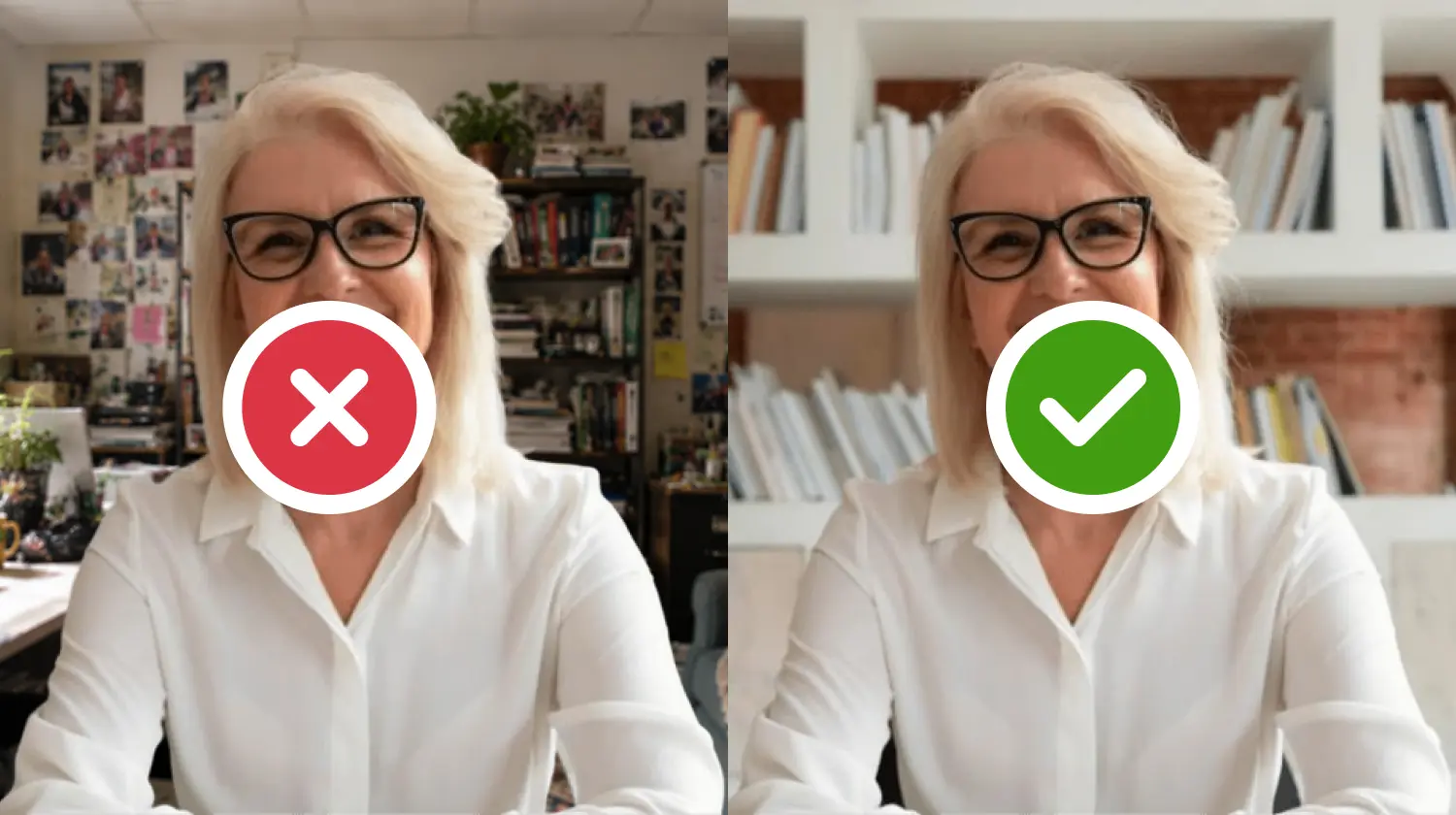
Not every image makes a great virtual background. We’ve highlighted a few simple guidelines to help you when selecting the best virtual background for your meeting or event:
- Choose the right size and resolution: Most platforms recommend a 16:9 virtual background with a resolution of 1920 × 1080 pixels (Full HD). Check your platform’s recommendations, as supported sizes may vary
- Lighting matters too: If your room is brightly lit but your background appears dark (or vice versa), the contrast can make the effect feel artificial. Try selecting virtual backgrounds with lighting that matches your own environment.
- Your clothing also plays a role: Avoid wearing colours that closely match prominent colours in your background, as AI segmentation can occasionally blend the two together.
- Simplicity almost always wins: Busy patterns, excessive detail, or cluttered scenes can distract viewers and reduce video quality. Clean office spaces, softly blurred environments, and simple branded designs tend to produce the most professional results while keeping the attention where it belongs: on you.
Office and Professional Virtual Backgrounds
Professional backgrounds remain the most versatile choice for online meetings, interviews, webinars, and client presentations. Here are some of the most effective styles.
Clean Minimalist Office

A bright office with clean lines, neutral colours, and minimal furniture creates a polished look suitable for almost any professional meeting.
➡️ Download virtual background
Modern Home Office
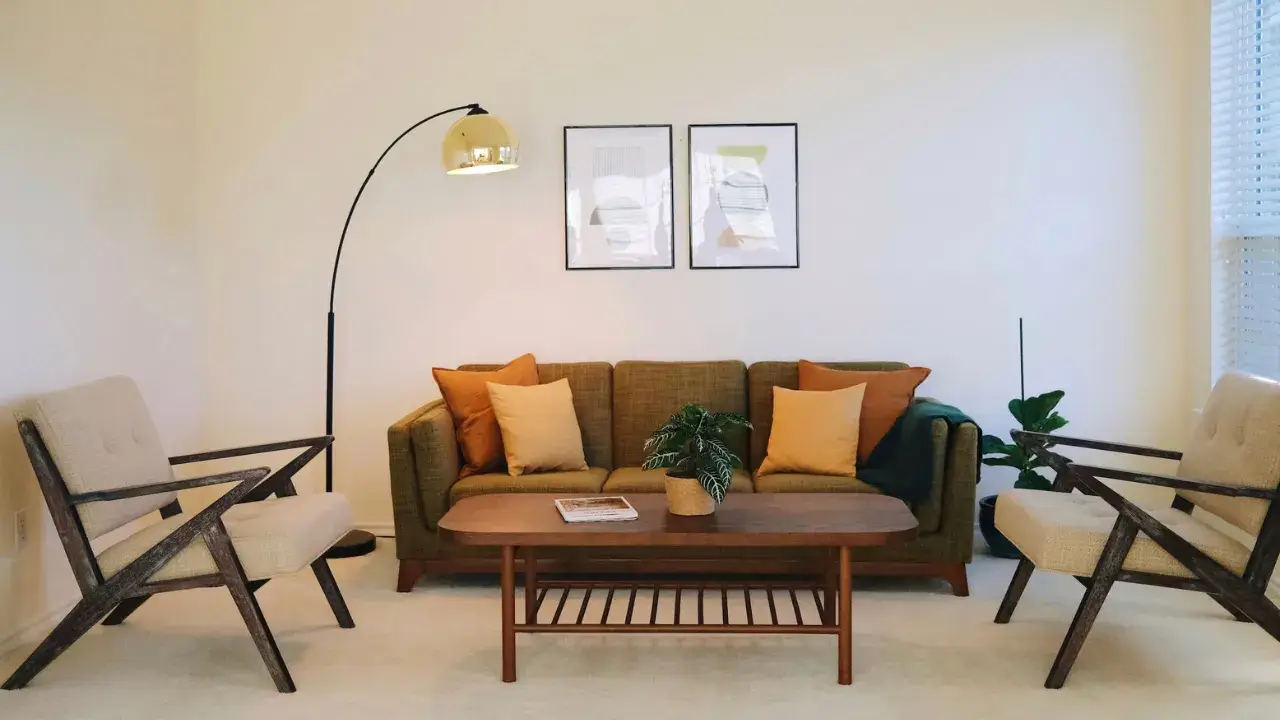
A thoughtfully designed home office feels approachable while maintaining professionalism, making it ideal for customer meetings and hybrid teams.
➡️ Download virtual background
Bookshelf Background

A tasteful bookshelf adds warmth and personality without becoming distracting. It’s particularly popular for consultants, educators, and thought leaders.
➡️ Download virtual background
Branded Company Background

Add your company logo, brand colours, or event identity to reinforce your brand throughout webinars, product demos, and presentations.
➡️ Download virtual background
Modern Co-working Space
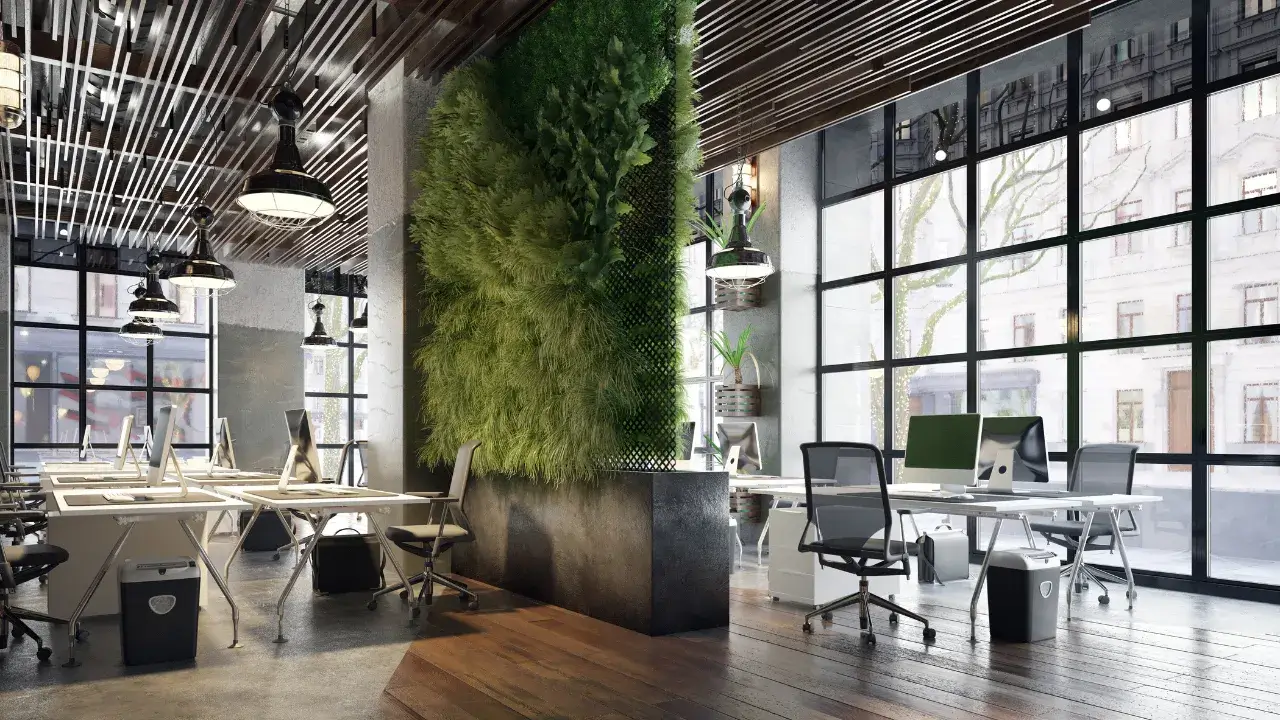
Contemporary shared workspaces communicate collaboration and innovation, making them popular for startup teams and community events.
➡️ Download virtual background
Executive Boardroom
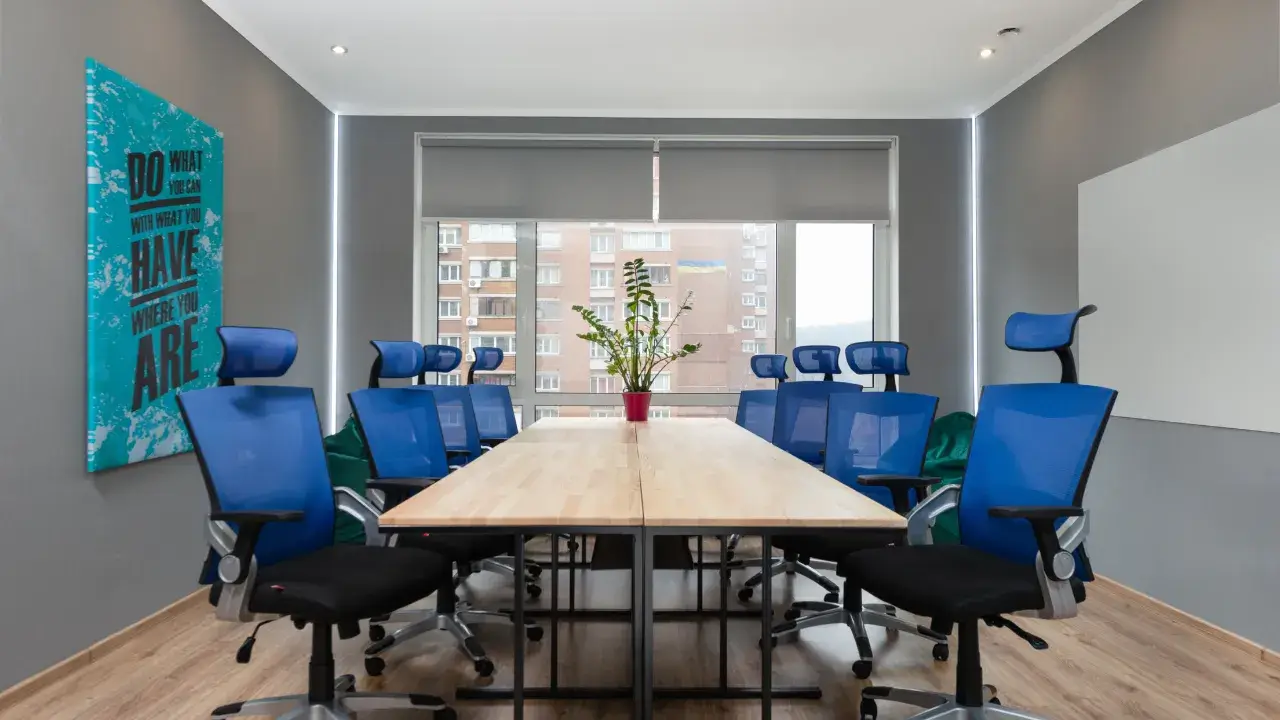
Boardroom backgrounds are ideal for leadership presentations, executive briefings, and investor meetings.
➡️ Download virtual background
Creative Studio
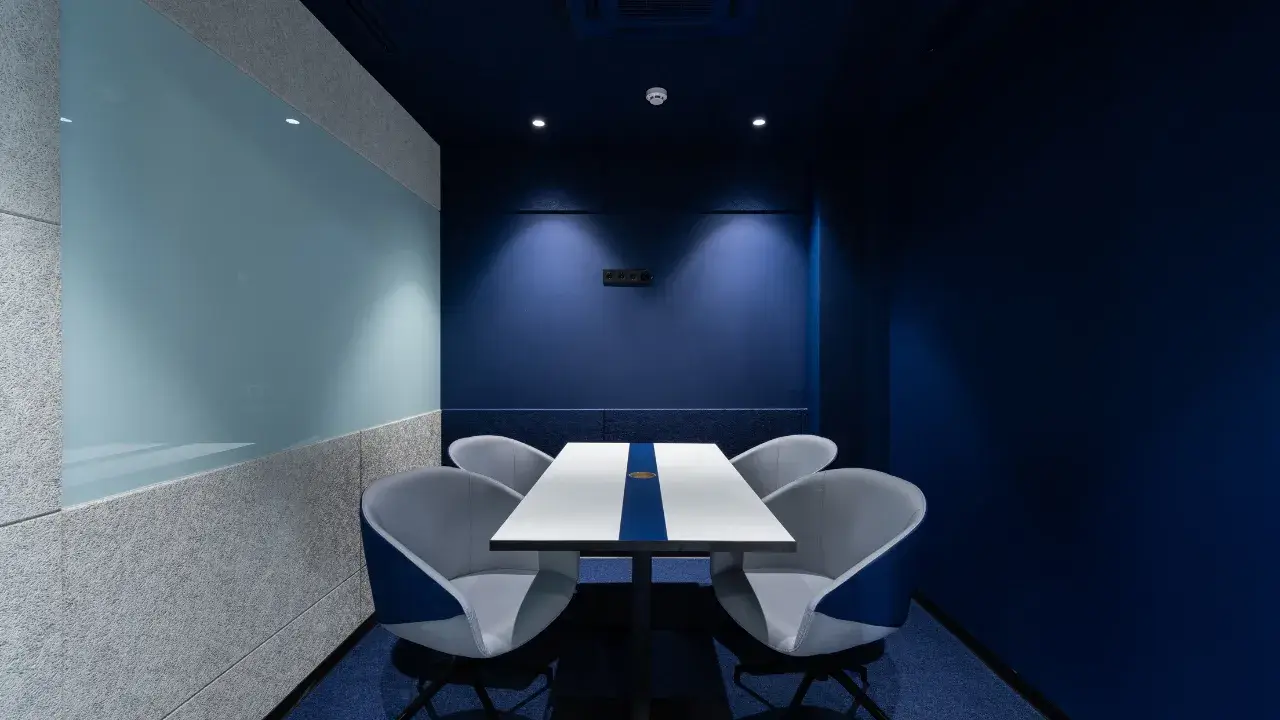
A modern design studio works well for creative agencies, designers, and marketing professionals who want a slightly less formal aesthetic.
➡️ Download virtual background
Bright Meeting Room
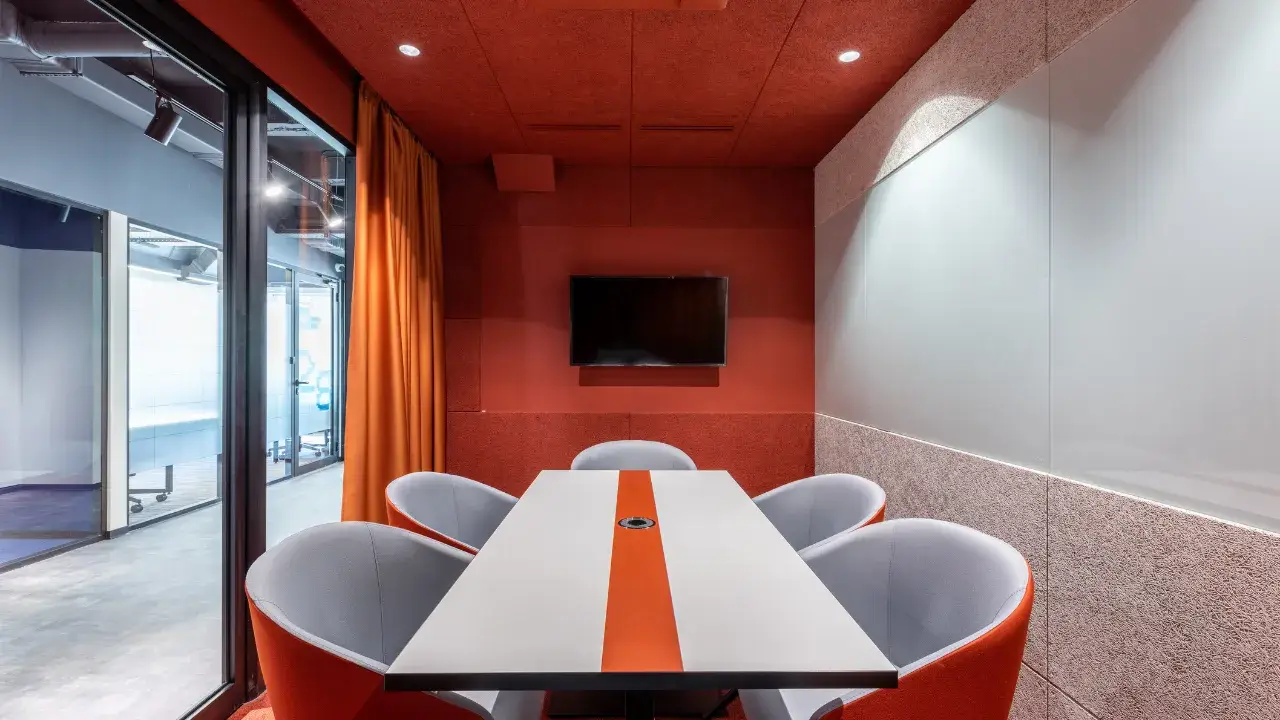
Simple conference rooms with natural lighting provide a neutral backdrop that works across industries.
➡️ Download virtual background
You can find thousands of free, high-resolution office backgrounds on websites like Unsplash and Pexels if you’re looking to build your own collection.
.webp)
Virtual Event and Webinar Backgrounds
If you’re hosting webinars or virtual events, your virtual background should do more than replace your room. Used strategically, it can reinforce your event branding, create a more cohesive attendee experience, and help every speaker look like they’re part of the same professionally produced event.
Event-Branded Backgrounds
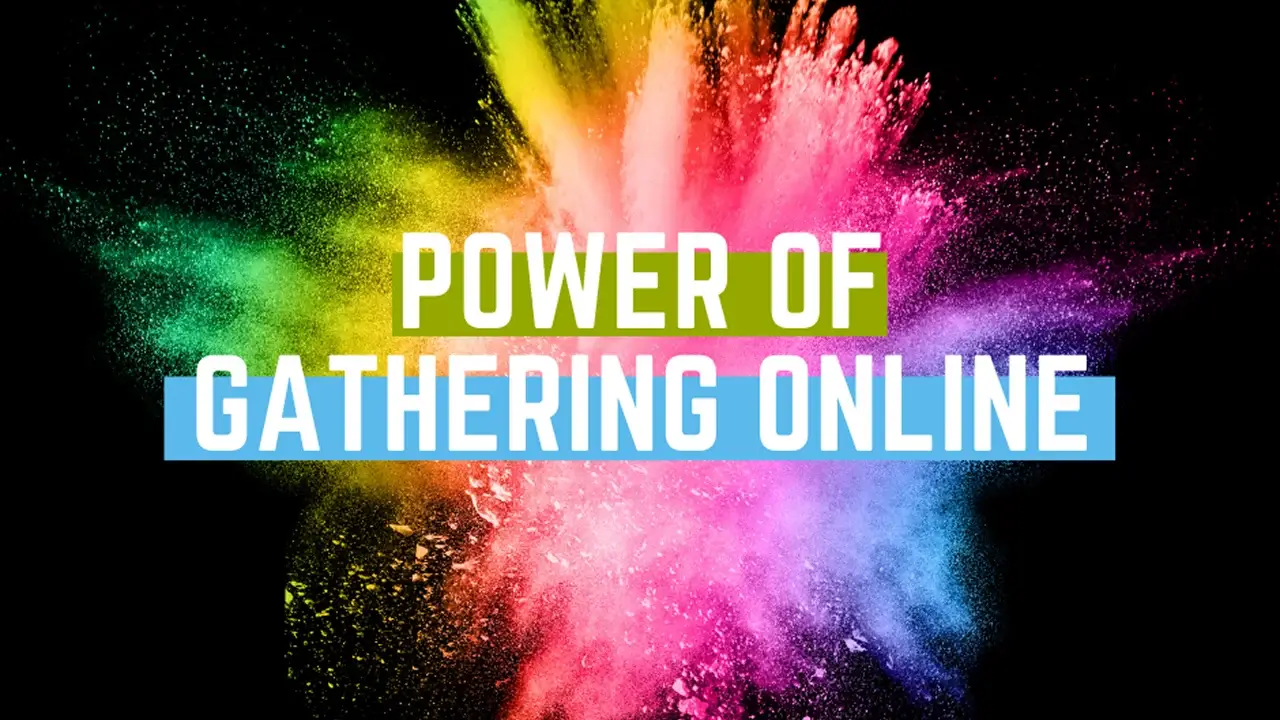
Include your event logo, colours, tagline, or sponsor logos to create consistency across hosts and speakers. For example the above image uses an event logo to create a branded background image for the Power of Gathering Online Summit.
➡️ Download virtual background
Virtual Stage Background

Digital stages help keynote speakers appear as though they’re presenting from a professional conference venue.
➡️ Download virtual background
Auditorium Background

Large conference auditorium scenes add energy to keynote sessions, product announcements, and company-wide meetings.
➡️ Download virtual background
Panel discussion backgrounds
.webp)
Conference room or fireside-chat style backgrounds work particularly well for interviews and panel discussions.
➡️ Download virtual background
Awards Ceremony Backgrounds

Elegant stage lighting and celebration themes are perfect for recognition events and company award ceremonies.
➡️ Download virtual background
Themed Event Backgrounds

Custom backgrounds designed around your event’s theme help create a more cohesive experience for attendees. Whatever type of virtual event you’re hosting, matching backgrounds can reinforce your event branding and make speakers feel like they’re part of the same production.
➡️ Download virtual background
One advantage of hosting events on Remo is that backgrounds become part of a much larger branded experience. Instead of attendees simply appearing in a grid of video feeds, they move around an interactive virtual venue where hosts can combine branded floor plans, virtual tables, sponsor booths, and custom virtual backgrounds to create an experience that feels far more immersive than a traditional video call.
Beach and Vacation Virtual Backgrounds
Not every meeting needs to feel like a board meeting. Beach and outdoor backgrounds can add personality to informal team events while still looking polished.
Tropical Beach

Perfect for virtual team socials, informal networking sessions, or end-of-quarter celebrations.
➡️ Download virtual background
Beach Sunset

A calm sunset backdrop works well for relaxed community events and after-hours networking sessions.
➡️ Download virtual background
Tropical Vibes

A bright, playful beach background that works well for virtual happy hours, summer team socials, and tropical-themed networking events without being overpowering.
➡️ Download virtual background
Forest Retreat
.webp)
Clean, slightly blurred woodland scenes create a calming atmosphere for wellness sessions, retreats, or internal workshops.
➡️ Download virtual background
Cliffside Ocean View

A dramatic coastal backdrop that feels polished without being overly playful. Ideal for virtual networking sessions, community events, or informal team meetings where you want something more distinctive than a standard beach scene.
➡️ Download virtual background
Outdoor backgrounds are generally best reserved for internal meetings, networking socials, virtual happy hours, and community events rather than formal client presentations.
Seasonal Virtual Backgrounds
Seasonal backgrounds help create timely experiences throughout the year without requiring extensive event branding.
Spring

Fresh flowers and bright greenery work well for spring networking events and customer appreciation sessions.
➡️ Download virtual background
Summer

Sunny outdoor scenes are popular for company socials, community meetups, and summer webinar series.
➡️ Download virtual background
Autumn/Fall

Warm colours and autumn landscapes add a welcoming feel to conferences and educational events.
➡️ Download virtual background
Winter

Snowy scenery and holiday-inspired designs are ideal for year-end celebrations, virtual holiday parties, and seasonal webinars.
➡️ Download virtual background
Fun and Casual Virtual Backgrounds
Professional events don’t always have to be serious. Fun backgrounds can make internal celebrations more engaging while still feeling appropriate for the occasion.
Birthday Celebrations


Celebrate employee birthdays with festive backgrounds during virtual team gatherings.
➡️ Download virtual background (1)
➡️ Download virtual background (2)
Baby Shower Backgrounds


Perfect for workplace baby showers and team celebrations.
➡️ Download virtual background for boy
➡️ Download virtual background for girl
Virtual Happy Hour
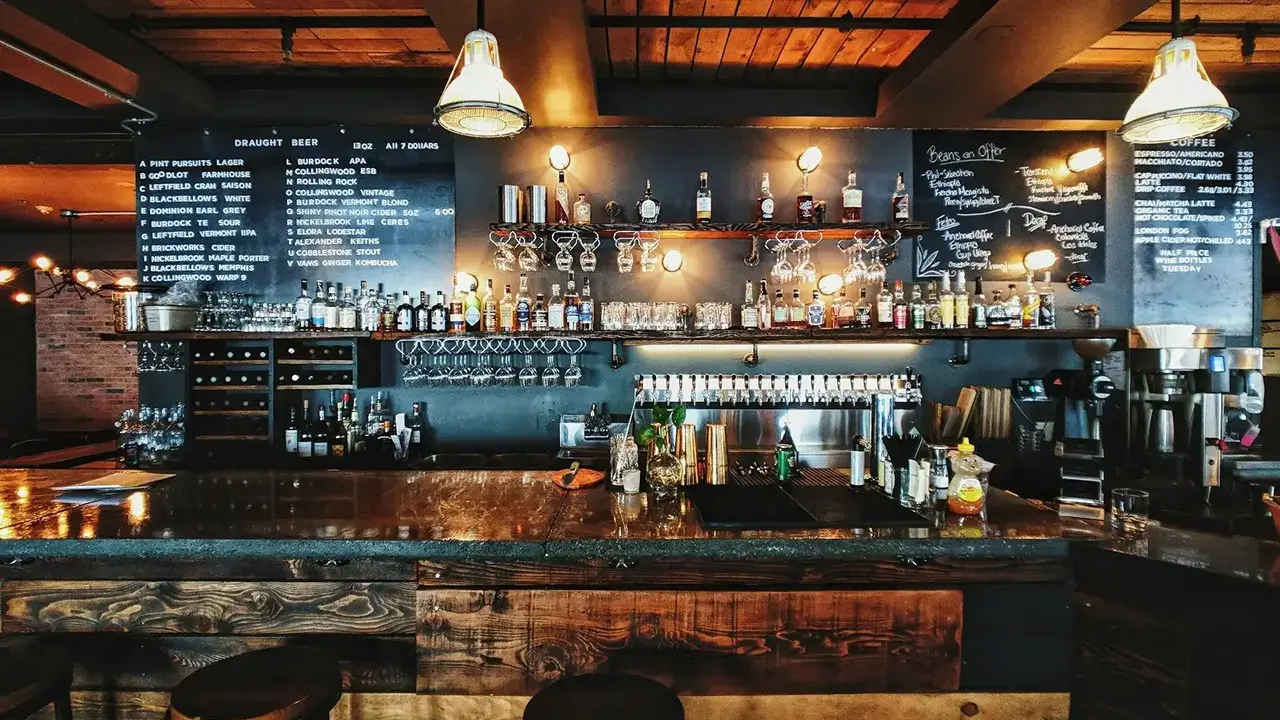
Relaxed café or rooftop scenes help create a more social atmosphere after work.
➡️ Download virtual background
Company Milestone Celebrations

Celebrate product launches, anniversaries, or major achievements with custom branded celebration backgrounds.
➡️ Download virtual background
How to Set a Virtual Background
Most modern video conferencing and virtual event platforms make it easy to apply a virtual background in just a few clicks. Here we’ll go through how to set virtual backgrounds on common online platforms:
How to Set a Virtual Background on Zoom
1. Join a Zoom meeting or event on the desktop app.
2. Click the arrow icon “^” next to the video button.
3. Click “Video & effect settings” > “Virtual backgrounds”.
4. Choose one of Zoom’s built-in backgrounds or upload your own image by clicking the “+” icon.
Zoom Virtual Background Requirements:
- PNG, JPG or JPEG image format
- 15MB maximum image size
- Use a 16:9 aspect ratio (1280x720 pixels or 1920x1080 pixels)
How to Set a Virtual Background on Microsoft Teams
1. Join a Teams meeting or webinar on the desktop or mobile app.
2. Select “More actions” > “Video effects and settings” if on desktop or “Background effects” if on mobile
3. Choose an existing background or upload a custom image by clicking “Add new”
4. You can preview the background by selecting “Preview”
5. Click “Apply”
Microsoft Teams Virtual Background Requirements:
- PNG, JPG or BMP image format
- 5MB maximum image size
- Use a 16:9 aspect ratio (1280x720 pixels or 1920x1080 pixels)
How to Set a Virtual Background on Google Meet
1. Open your Google Meet session on a desktop browser.
2. Click the arrow icon “^” next to the video button.
3. Click “Backgrounds and effects”
4. Choose a built-in background or upload your own image by clicking the Add image icon
This automatically applies the virtual background in real-time
Google Meets Virtual Background Requirements:
- PNG or JPG image format
- 16MB maximum image size
- Use a 16:9 aspect ratio (1280x720 pixels or 1920x1080 pixels)
How to Set a Virtual Background on Remo
Remo allows participants to personalize their appearance while moving naturally throughout the virtual event space.
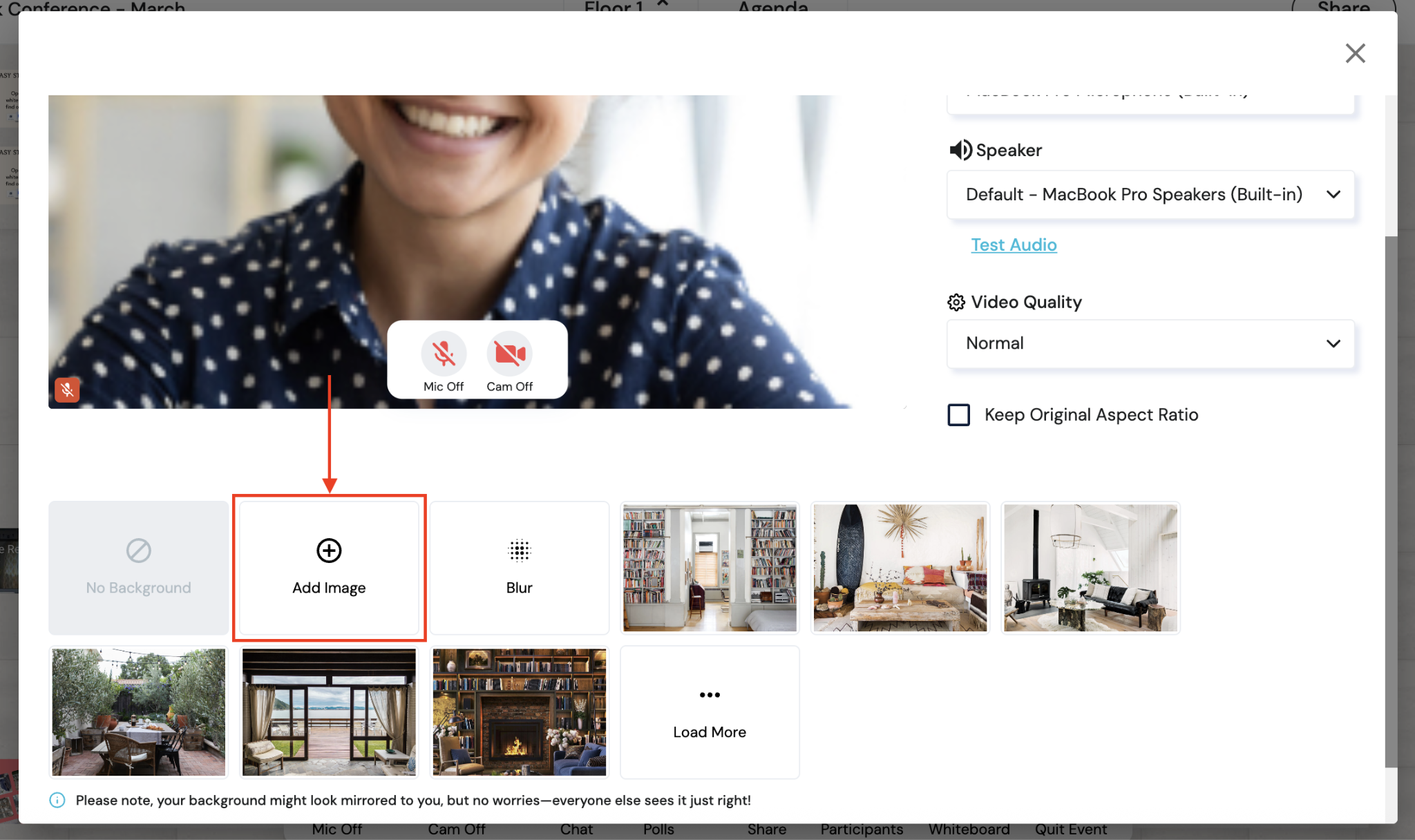
1. Join your Remo event.
2. Click the arrow icon “^” next to the video button in your bottom menu toolbar.
3. Select the “Virtual Background” option.
4. Choose one of the available backgrounds or upload your own branded image by clicking “Add image”.
Your background image will apply immediately to your video stream and will remain visible as you move between networking tables, presentation sessions, and conversations, helping maintain a consistent professional appearance throughout the event.
Remo Virtual Background Requirements:
- PNG, JPG, or GIF image format
- 3MB maximum image size
- Use a 16:9 aspect ratio (1280x720 pixels or 1920x1080 pixels)
Take Your Online Events Beyond the Virtual Background
A great virtual background helps you look professional. A great virtual event platform goes much further.
With Remo, you can combine branded virtual backgrounds with customizable floor plans, presentation stages, networking tables, sponsor booths, and interactive experiences to create memorable virtual events that attendees genuinely enjoy.
Want to see Remo in action? Book a demo today for a personalized walkthrough of how Remo can help you bring your event vision to life.
Frequently Asked Questions
- What is the best virtual background for a professional meeting?
Clean office environments, minimalist meeting rooms, softly blurred workspaces, and branded company backgrounds are typically the best choices. They look professional without distracting from the conversation.
- Do virtual backgrounds work without a green screen in 2026?
Yes. Most modern platforms, including Zoom, Microsoft Teams, Google Meet, and Remo, use advanced background segmentation that produces excellent results without requiring a physical green screen. Good lighting still helps improve accuracy.
- What size should a virtual background image be?
A 1920 × 1080 pixel (Full HD) image is the recommended minimum for most video conferencing platforms. Higher resolutions may produce even sharper results on larger displays. However, different platforms may require different aspect ratios, so it’s always best to check with your chosen platform first.
- Does Remo support virtual backgrounds?
Yes. Remo allows participants and event hosts to use virtual backgrounds while moving throughout the platform’s interactive virtual event environment, making it easy to maintain a professional and branded experience across networking sessions, presentations, and virtual booths.
Hoyin Cheung
Hoyin Cheung is the Founder & CEO of Remo, where he focuses on enhancing the authenticity of connections at virtual events. With a wealth of experience in event planning, he translates his insights into compelling content aimed at improving virtual interactions. His mission is to empower event professionals with practical tips to foster genuine connections in every virtual gathering.